
A blank page can carry a surprising amount of furniture. Toolbars wait to be explored. Sidebars ask where the work belongs. Before the first sentence, you are already managing the software.
Riikee is a distraction-free writing app built to shorten the distance between opening the app and writing. Today's page is ready when you arrive. The tools are nearby, but they stay outside your attention until you ask for them.
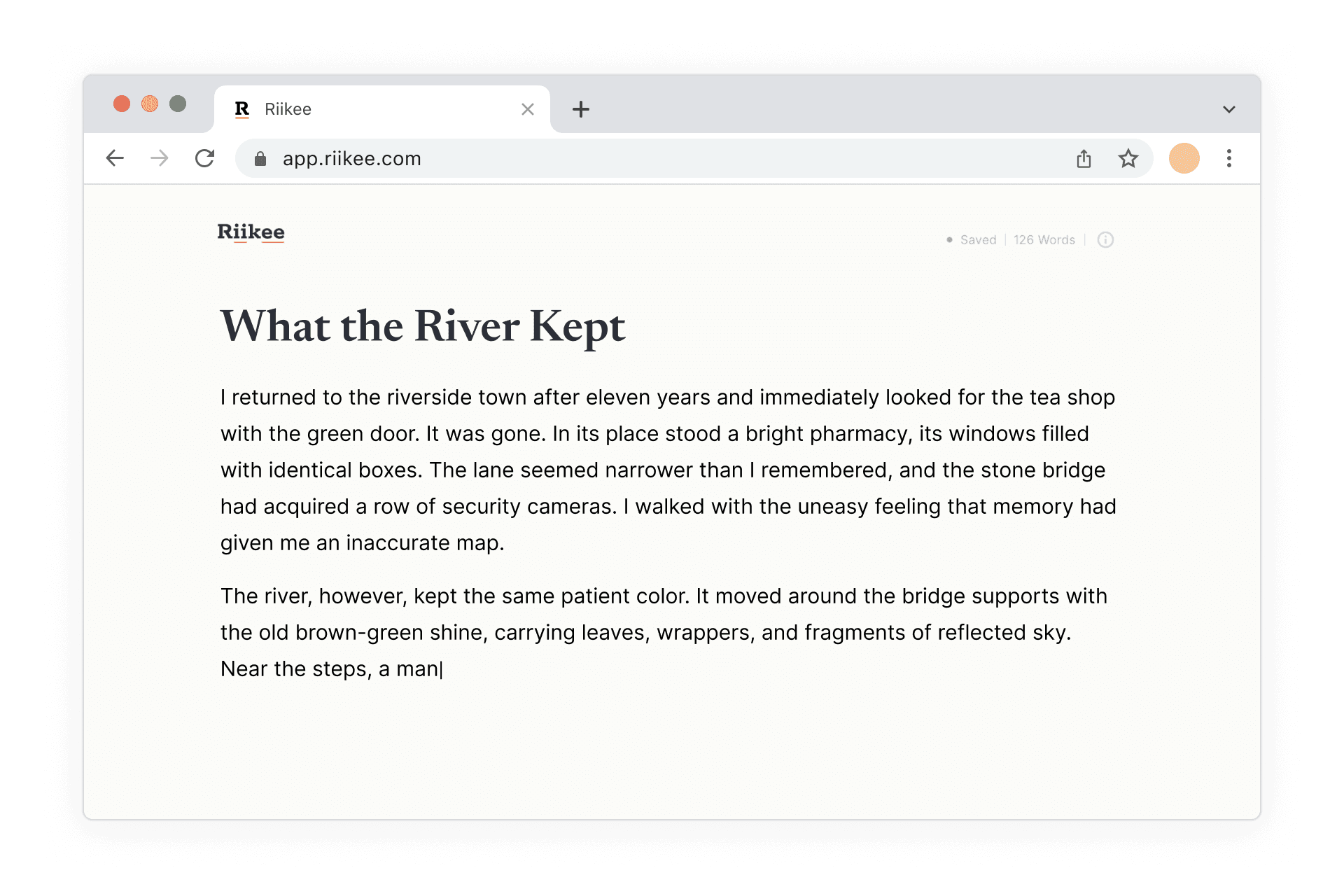
Begin with today's page
Most writing software asks you to organize the work before you have made it. You choose a folder, create a document, and decide how it should be arranged. Those decisions may be useful later. At the beginning, they can stand between you and a thought that is still trying to take shape.
Riikee opens directly to today's page. Give the practice a title if you have one, then write. If you are signed in, Riikee saves the page as you work. There is no setup ritual to complete before the first line.
Tools wait until you need them
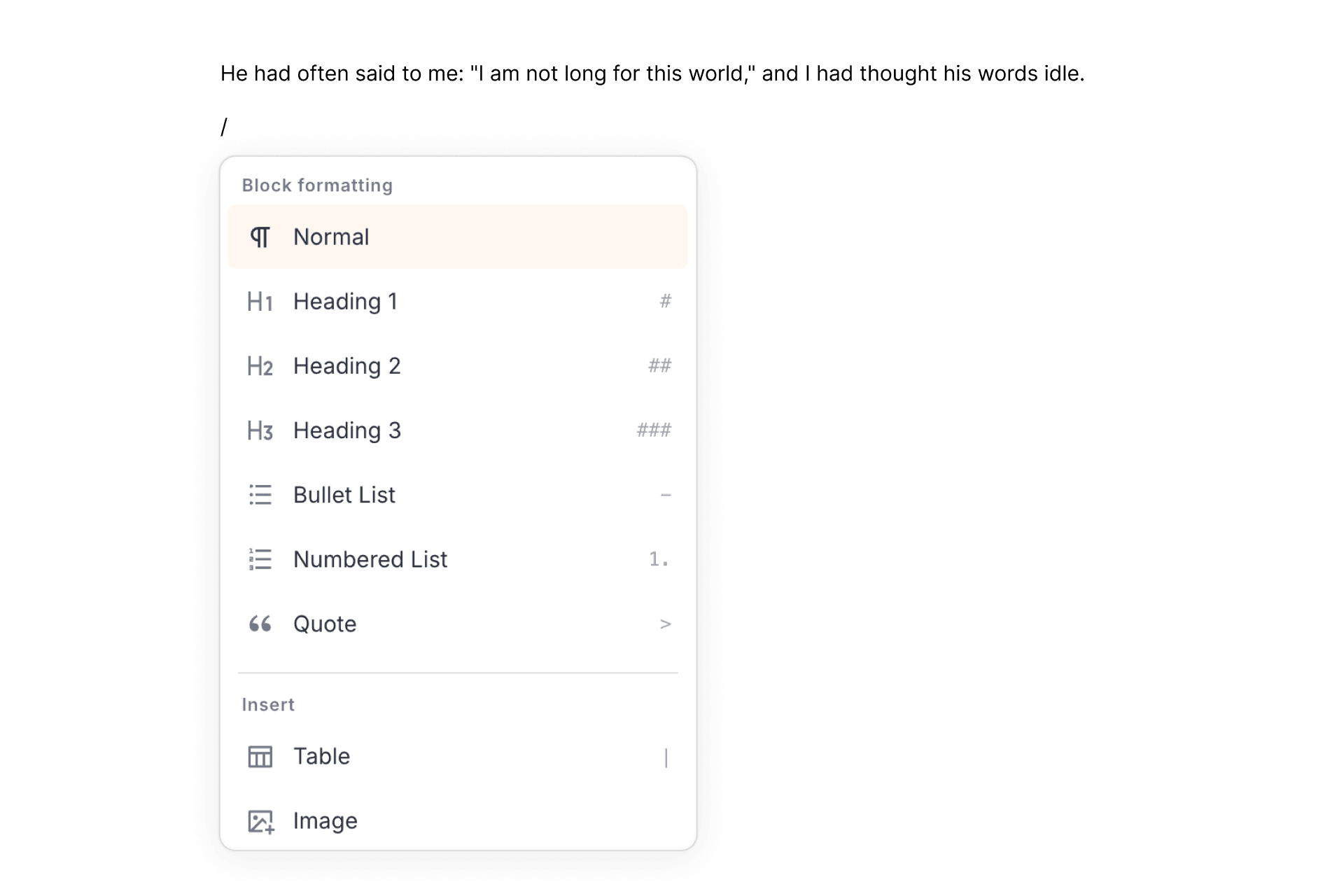
An empty page does not need a permanent formatting bar. In Riikee, type / to open the Slash Menu beside the cursor. Headings, lists, quotes, alignment, and AI writing tools appear in that moment, then leave the page again.
Selecting text works the same way. The controls that can act on the selection appear close to it, instead of taking up space throughout the session. You spend less time looking past the interface to find your own words.
Useful tools, quiet by default
Drafting and editing ask different things of the page. While drafting, you may want almost nothing on screen. Later, you may need a heading, a quotation, or a cleaner structure. Riikee keeps those choices without displaying all of them at once.
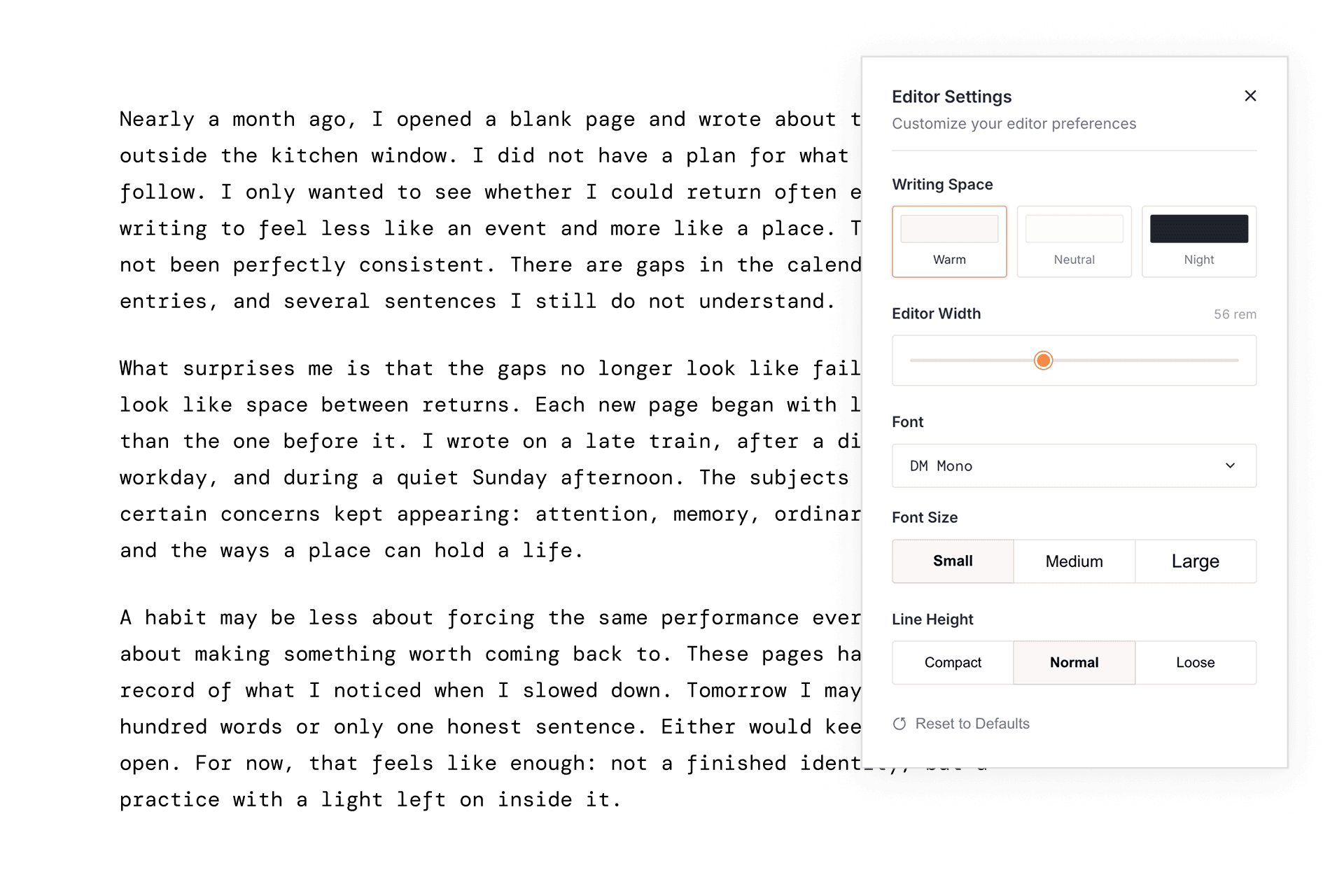
Editor Settings lets you change the writing width, typography, and color theme. Export gives you a copy when you want to continue elsewhere. The interface stays quiet, but the work is not trapped in a plain text box. You can read the practical details in the guide to the Riikee editor.
Give a writing session a clear edge
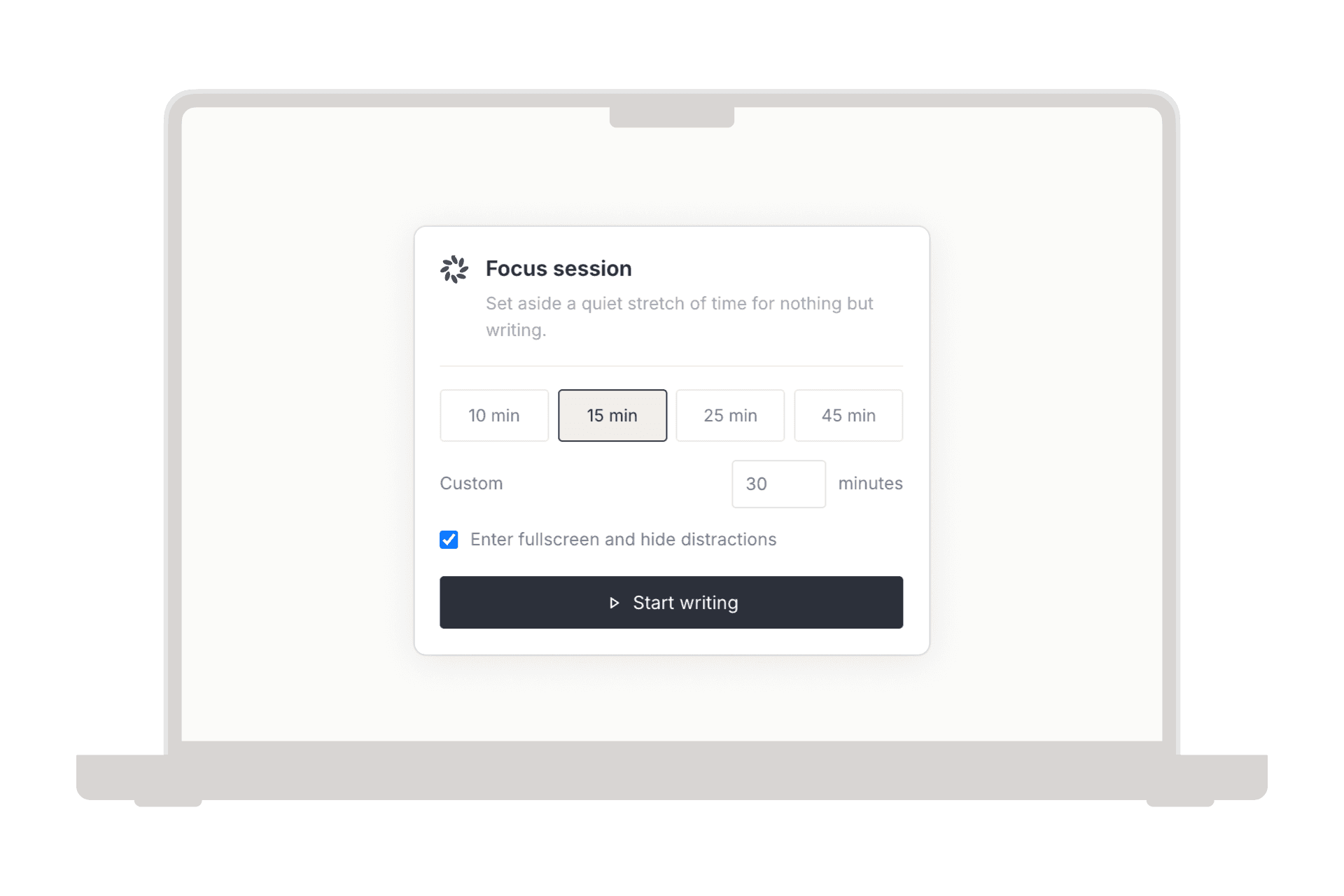
A calm editor is often enough. On days when your attention needs a firmer boundary, Focus Mode lets you choose a duration and decide whether to enter browser fullscreen. The page stays in the center while Riikee records the Focus Session separately from ordinary writing.
Fullscreen can hide browser tabs and controls when the browser allows it. A website cannot silence notifications from the rest of your computer or phone, so device-level Do Not Disturb still belongs in your own setup. The Focus Mode guide explains what the mode can and cannot hide.
Keep necessary feedback in its place
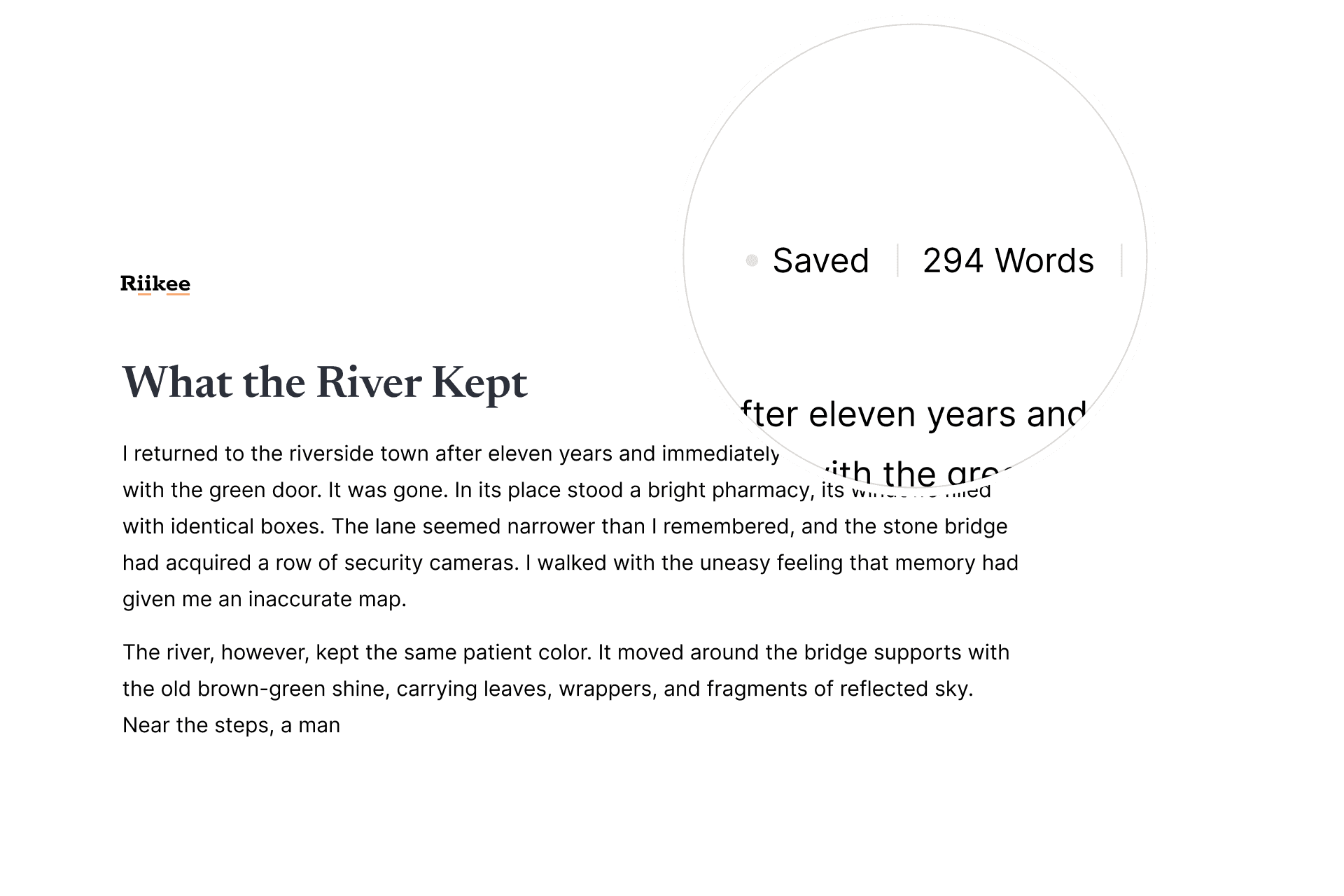
The upper corner of the editor shows two things writers often need to check: whether the page is saved and how much has been written. They are visible without becoming a dashboard. When you return to the sentence, they recede into the edge of the page.
Guests can try the editor and export a TXT file. Sign in before leaving if you want Riikee to save the practice to your writing history. That history is available when you want to look back. It does not compete with the work in front of you. Read how Riikee approaches a longer practice on the writing habit page.
AI appears when you invite it
Writing assistance should begin with an action you choose. Riikee keeps AI inside the Slash Menu and the controls for selected text. You can ask for a continuation, a rewrite, or advice when you want it. The response remains a suggestion until you accept it, and nothing replaces your prose on its own.
This boundary matters because a suggestion can be useful and still be wrong for the page. See how those tools work on the AI-assisted writing page.
A focused place for the writing itself
Riikee suits journals, essays, early drafts, and other personal writing you want to return to. It is also a good fit when a general notes app has grown crowded with tasks, clipped links, and shared material.
It is not a publishing system or a team workspace. Riikee does not manage editorial approvals, academic citations, or complex page layouts. If your work needs those things, another tool should handle that stage. Riikee concentrates on the part where the words first take shape.
Questions about distraction-free writing
What is a distraction-free writing app?
It is an editor that reduces interface clutter while you write. The useful distinction is not whether the app has tools, but whether those tools demand attention before you need them.
Can I format text in Riikee?
Yes. The Slash Menu includes headings, lists, quotes, alignment, and other writing commands. Selecting text reveals inline formatting controls near the selection.
Does Riikee have a fullscreen writing mode?
Focus Mode can request browser fullscreen and run for a duration you choose. Your browser and device determine what can be hidden.
Can Riikee block notifications from other apps?
No. Websites cannot switch on your computer or phone's system-level Do Not Disturb setting. Use your device controls when you want to silence other apps during a Focus Session.
Will AI interrupt me while I write?
Riikee's AI tools appear when you open them from the Slash Menu or a selected passage. Suggestions do not replace your writing unless you choose to apply them.
Can I take my writing with me?
Yes. Guests and Basic members can export TXT. Pro members can also export Markdown, Word, and PDF. Your writing remains available outside Riikee.